Publish a newsletter
A newsletter is a node with 1 or 2 contents of the type text.
The first contains the message formatted in HTML.
The second contains a simple text used by applications configured to display message bodies in plain text mode.
Newsletters are grouped within a thread of the type Newsletter.
Connect  as an administrator.
Click on the keyboard  to enter the editor.
Click on the title of thread, e.g. Content, at the top right of the banner.
Click on Threads at the top right of the banner to display the list of threads.
to enter the editor.
Click on the title of thread, e.g. Content, at the top right of the banner.
Click on Threads at the top right of the banner to display the list of threads.
Create the thread Newsletter with the type Newsletter.
Move the mouse over Newsletter in the list of threads to display the number of the thread.
Edit the file config.inc.
Assign the number of thread to the parameter $newsletter_thread.
Return to the home page.
Enter  in the Management section.
Click on the envelop  to access the thread.
Enter in the editor.
Add the node Publish a newsletter.
Edit the node.
Enter the key words iZend documentation article newsletter email in the cloud.
Add Send a newsletter formatted in HTML as an abstract.
Press Edit.
Display  the version in French.
Enter the title Publier une infolettre, the cloud iZend documentation article infolettre newsletter email and Envoyez une lettre d'information éditée en HTML as an abstract.
Press Edit.
Enter in the Management section.
Click on the envelop to display the most recent newsletters.
Try the search engine.
Click on the newsletter Publish a newsletter.
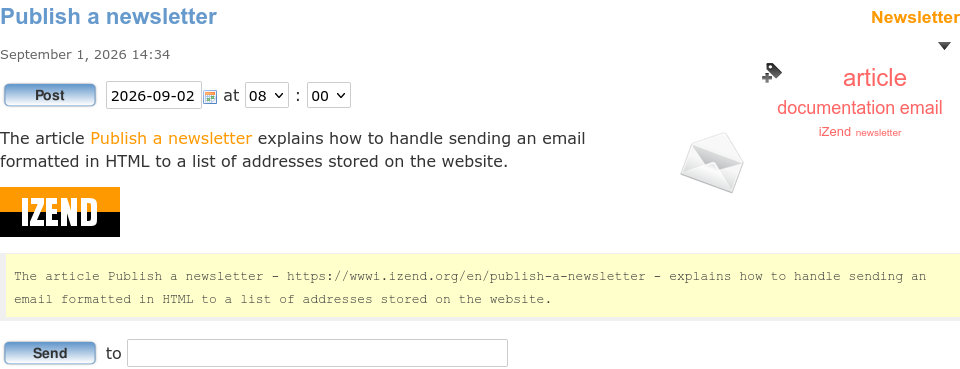
The message in plain text is displayed under the message formatted in HTML.
Testing
To test the message, enter a personal email address and press Send.
To display the message in plain text in Thunderbird: View → Message Body As → Plain Text. To display the message in HTML: View → Message Body As → HTML original.Sending
To program sending the message to all the recipients of a newsletter, select a date and an hour between 08:00 and 18:00.
Press Post.
The button Post is replaced by a button Cancel.
The email addresses of the recipients are registered in the table newsletter_user in the DB.
The field locale determines in which language the message is sent.
To add an address, user the sign-up form Newsletter from the home page.
IMPORTANT: To post the version in French, display the home page in French, enter in the section Gestion, click on the envelop and program sending the message Publier une infolettre.
A newsletter is posted by Cron on Linux or by the Windows Task Scheduler.
Follow the instructions in the file CRONTAB to program the regular execution of the script cron_newsletter.php in the folder cron at the root of site.
Example of a file in the folder /etc/cron.d which runs the script cron.php of the site sitename.net every 15 minutes:
*/15 * * * * www-data /usr/bin/php -f /var/www/sitename.net/cron.php
cron.php bootsraps the code a site and calls the function cron_run.
cron_run makes sure another to cron_run isn't already running and executes all the scripts *.php in the cron directory at the root of the site.
A posted newsletter displays the date and time of publication:
 The message was sent September 2, 2026 at 08:00.
The scheduled date and time of a newsletter and the date and time of its actual publication are recorded in the table newsletter_post of the DB.
Comments